To make a shared grocery list in Google Keep, open your list, open the action menu, choose Collaborator, add your partner's name or email, and save. From then on, you can both add and check off items, and it works across iPhone, Android and a computer. It is a good choice for a couple with mixed phones, whether you are sharing with a husband, wife, boyfriend or girlfriend, as long as you each have a Google account.
The steps below come from Google Keep Help, checked in November 2026. Google updates its menus now and then, so labels may differ a little in your version. The Keep app is listed as free on the App Store.
How do you share a Keep list on iPhone?
Google's iPhone and iPad steps are these.
Step 1. Open the Google Keep app.
Step 2. Tap the note or list you want to share.
Step 3. Tap the Action menu icon.
Step 4. Tap Collaborators.
Step 5. Type your partner's name or email address.
Step 6. Select the matching name or address.
Step 7. Tap Done at the top right.
How do you share a Keep list on Android?
Google's Android steps are nearly the same, with a different final button.
Step 1. Open Google Keep.
Step 2. Select the list.
Step 3. Tap the Action button.
Step 4. Choose Collaborator.
Step 5. Type your partner's name or email address, and select the match.
Step 6. Tap Save at the top right.
How do you share a Keep list on a computer?
From Google's computer steps: go to Google Keep in your browser, open the note, click the Collaborator icon (a person with a plus sign), type a name or email, select the right person, click Done, then click Save.
To remove someone on any device, open the same collaborator panel, use the Remove control next to their name, and save.
Is there a faster way if you have a Google family group?
Yes, if you already have one. On Android, open the note, tap Action, then Collaborator, then Family group, and tap Save. Shared notes show a Family group icon.
There are some things to know before choosing it. A family group holds up to six people, you can only be in one at a time, and you can only change family groups once every 12 months. Also, anyone in the family can edit or delete notes you share with the group. For a list between just the two of you, adding your partner as a collaborator is simpler.
What surprises couples about sharing in Keep?
Four details from Google's help matter in daily use.
- The owner can delete it for both of you. If you own a shared note and delete it, it is deleted for everyone. So decide who creates the list, and keep the grocery list out of any tidy-up.
- Your partner can edit everything. Collaborators can change text, lists, images, drawings and audio recordings. To share a read-only copy, Google suggests sending the note to another app instead.
- Reminders are not shared. Anyone you share with can label, color, archive or add reminders without changing the note for others. So a reminder you set is for you alone, and your partner has to set their own.
- Archiving is personal too. If your partner archives the list, it stays visible for you. If it seems to have disappeared on one phone, check the archive.
What can Keep do well, and what can it not do?
Keep is good for a shared list that changes all week. Sharing is quick, lists update in real time for collaborators, and neither of you has to learn a new system.
It has limits for a couple's whole household, and these come from what Keep is: a notes app with sharing.
- No owner on an item. Google's sharing help describes collaborators on a note, and it says nothing about assigning items to one of them. Everyone sees everything, and nothing says whose job it is.
- No aisle sorting described. Google's help pages we read do not mention it. If you want that, Apple's Reminders grocery list type sorts into categories, and AnyList is built around groceries and meal planning.
- No repeating chore on a schedule. Keep offers time and location reminders on notes, per person, which is different from a chore that comes back with a name on it.
That is why the common advice to "put it all in Keep" tends to work for groceries and not so well for chores. If you want Google for tasks, note that Google Tasks works differently: shared tasks are created in a Chat space or a Doc, and Google says they cannot repeat or have subtasks.
Who owns the grocery list?
A shared grocery list makes it easy to add milk. It does nothing about the real work, which is everything around the milk.
Every chore has four jobs: notice, plan, do, and follow up. For groceries, that looks like this.
- Notice. Someone sees that the coffee is running out, and that there is nothing for Wednesday.
- Plan. Someone decides what you are eating, checks what is in the fridge, and writes the list.
- Do. Someone goes to the store or places the order.
- Follow up. Someone unpacks, sees what was missing, and knows the replacement oat milk was wrong.
A partner who "does the shopping" from a list somebody else wrote has done the third job. That can still be a real help, but it leaves the rest of the mental load in place. Our guide to the four jobs in every chore goes further.
Here are three ways couples can split groceries, and all three can work.
One owner. One person owns the whole job, including deciding what to buy. The other adds what they notice to the list and otherwise leaves it alone. The owner does not have to ask. This is the cleanest arrangement.
Split by store or by week. You own the weekly shop and your partner owns the warehouse run. Or you alternate weeks, and whoever's week it is owns all four jobs. Alternating is easier to keep fair, as long as you agree how handoffs work.
Split meals from shopping. One plans meals, and one buys. This takes more talking, because the two jobs depend on each other, so you will need a set time each week.
A setup you can copy today
This takes about ten minutes.
Step 1. Create one list called "Groceries." Decide who owns the note, since the owner's delete removes it for both of you.
Step 2. Share it using the steps above.
Step 3. Put your agreement at the top of the list as plain text: "Owner: Sam. Shop by Saturday. Add anything by Friday night."
Step 4. Add a second list called "Always have," with the things you never want to run out of, like coffee, dishwasher tablets and pet food. The owner checks it before each shop.
Step 5. Set your own reminder for your own job. Your partner will not see it, and that's fine.
Step 6. Agree the rule for a missing item: the person who notices adds it to the list, without a text. If it is a real emergency, then send a text.
To propose it, try saying the real thing:
"I keep thinking about what we're running out of, and I'd like to stop carrying that. Could you own groceries for a month, including deciding what we buy? I'll add things to the list, and I won't check it."
If you are the partner taking it on:
"I'm happy to own this. If I buy the wrong yogurt, please tell me once and then let me handle it."
What might this look like in your house?
Two adults, one big shop a week. One list, one owner, added to by both, and a Friday night cut-off. After the shop, the owner unticks what you buy every week and removes the rest. The list stays short.
A couple with a baby. Two lists: Groceries and Baby supplies. The second one has a different owner, who watches stock levels for diapers and formula and places the order. Each person only has one thing to keep track of.
Different schedules. If one of you works nights, a shared list does much of the talking. Add a date to the top of the list when the shop is planned, so the other person knows when to get their items on. A date in plain text is enough for this, and nobody has to set anything up.
Different stores. Make a list per store, or a heading for each store inside one list. One list with headings is easier to keep shared, and there's less chance of someone adding to a list the other has never seen.
Should you use Keep, Reminders or a grocery app?
- Use Keep if you have mixed phones, or you want the simplest possible list on any device.
- Use [Apple Reminders](/guides/apple-reminders-for-couples/) if you both have iPhones and like items sorted into categories such as Produce and Seafood automatically.
- Use [AnyList](https://www.anylist.com/) if you plan meals and want recipes tied to your list. AnyList Complete is $14.99 a year for a household, as of November 2026.
What if a shared list starts a fight?
If it feels like the list has become an argument with items on it, take a step back from the app. Our guide on how to stop nagging has wording for the moment you want to remind someone again, and what to do when one partner does more can help when the problem is bigger than groceries. Both of you may also like a rough picture from the chore split calculator, which runs in your browser and stores nothing.
What should you use for everything other than groceries?
Keep can stay your grocery list. For chores and tasks with one owner, you have a few choices.
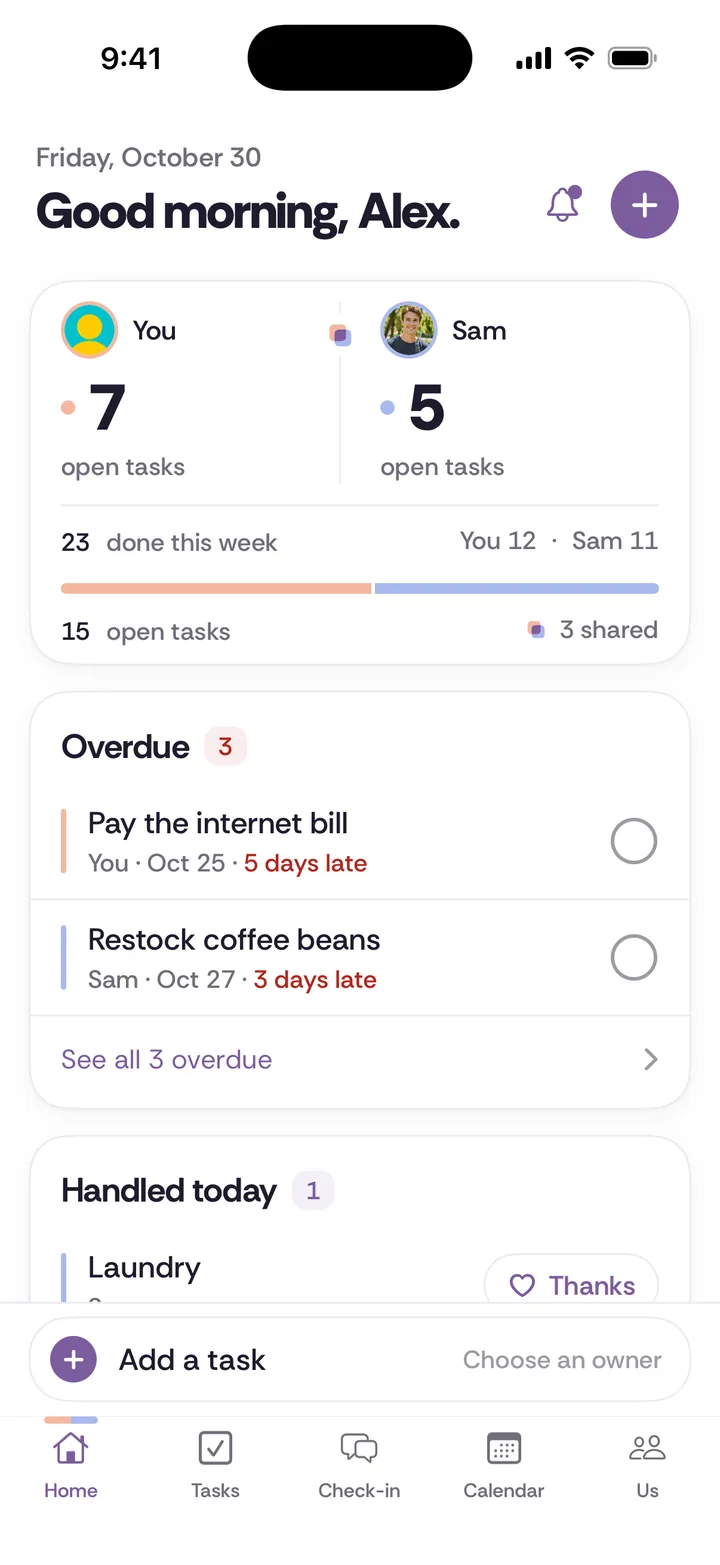
If you both have iPhones, shared Apple Reminders is free and supports assigning. If you want a broader comparison, see the shared to-do apps we compared. If you want repeating chores with one owner, plus a weekly check-in, Tiptoe does that on iPhone and the web, with lists included, and it's free for both of you for your first 30 tasks and chores. It has no Android app, so an Android partner would use the web version.
You can also do all of this without an app. Keep your grocery list where it is and write the chores on paper. Our chore split worksheet is free to print, and a fridge door works fine.